Set the frequency
- Open the patient and press the Frequency tab. It shows once the patient has an admission.
- If there is no cert period yet, press Create cert period. Answer whether you are admitting the patient or doing an evaluation, and pick the date.
- Under Cert periods, open the period, such as Period 1.
- In Type frequency here, type the frequency and press Apply or Enter. The weeks below fill in.
- Check the weeks. Each week has a minus and plus to change its count by one.
- Press Save in the bar at the bottom. Cancel takes your changes back.
- 2w82 visits a week for 8 weeks. You can also write 2x8.
- 3w1, 2w43 visits in week 1, then 2 a week for 4 weeks. Put a comma between parts.
- 0w2A hold of 2 weeks. Visits after it keep the frequency.
- Limits0 to 14 visits a week, and 1 to 52 weeks in all.
What you type starts from the week holding today. Weeks that have passed stay as they are. To set the next period, press Add the next cert period under the list.
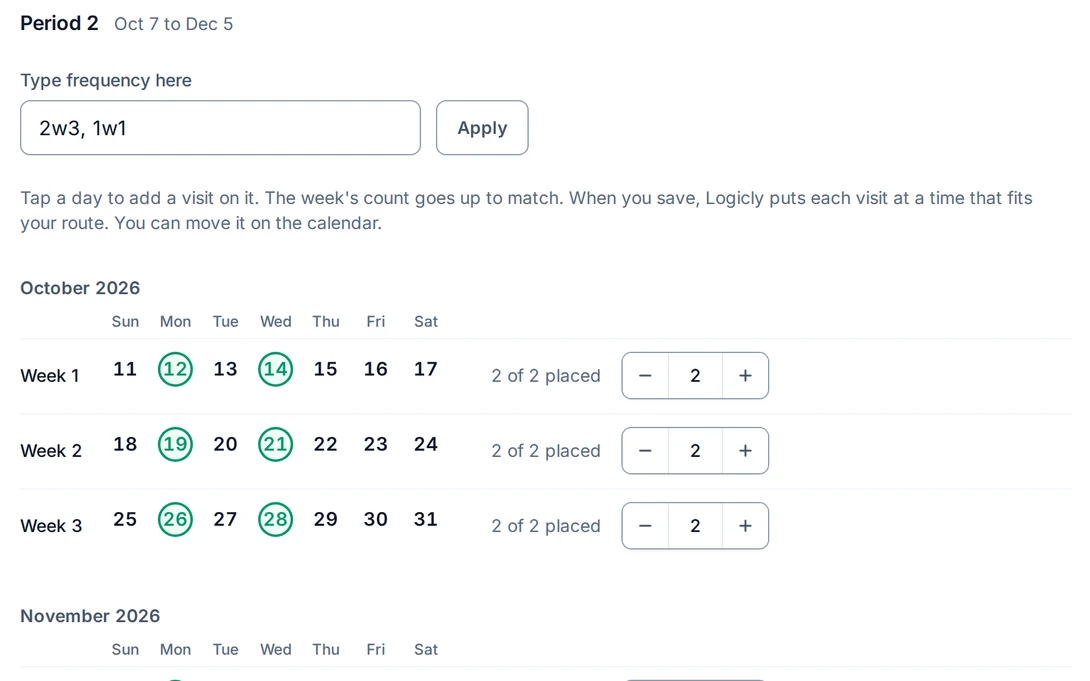
Tap the days for each visit
Tap a day to add a visit on it. The week's count goes up to match. When you save, Logicly puts each visit at a time that fits your route. You can move it on Schedule.
- In each week, tap the days you want, such as Monday and Wednesday for 2w8. A picked day shows as Picked, placed when you save.
- Tap a picked day again to take it back.
- Press Save. A message says how many visits were placed, with Undo.
How Logicly picks the time
- On a day with no other visits, the visit starts when your working day starts. On today, not before now.
- On a day with visits, it goes where it adds the least driving, between the visits already there.
- It looks first for a time the patient isn't blocked, inside your working hours.
- If no time fits, it goes after your last visit of the day, even past your working hours. Move it on Schedule if you need to.
- Visits placed this way have no visit type yet. Open the visit and press Choose visit type to give it one.
You don't have to tap days. A saved frequency also puts the patient in the visit pool on Schedule for each week it still needs visits.
What happens to visits already on your schedule
- Saving a frequency never deletes or moves a visit.
- Visits already in a week count toward that week. A day that already has a visit of your discipline for this patient can't be tapped.
- Days before today can't be tapped.
- If you lower a week below the visits already placed, Logicly tells you, such as Week of Oct 12 has 3 visits placed and the frequency now orders 2. Move or delete one.
If it isn't working
- There is no Frequency tabThe patient needs an admission first.
- The weeks count from the start of care.There is no start of care yet. Create the cert period first.
- Write each part as visits a week, then weeksType the frequency like 2w4 or 2x4, with a comma between parts.
- Enter one number of visits a week, such as 2w4.A range like 1-2w4 isn't taken. Use one number.
- A day can't be tappedIt has passed, it already has a visit of your discipline for this patient, or the week is at 14 visits.
- Some of the visits were placedLogicly says how many were placed. The days not placed are still picked: save again to place them.
- This order changed since you opened it. Your changes were not saved.Someone or another device saved this frequency. Look at it again and make your change.
- Another clinician's order.You can only change your own discipline's frequency. Other orders are shown to read.
Still stuck? Email support@logicly.ai.
Related articles
How to place visits from the visit poolDrag or press a card in the visit pool to put a visit on your schedule, and drag it back to take it off.Auto-schedule a week, and undo itOne press places the week's visits, spread out, in driving order. Undo puts the week back.Mark times a patient can't be seenMark dialysis days and other times on the patient's record, and see them while you place visits.Why a patient isn't in the visit poolWhat puts a patient in the visit pool, and why one might be missing or stuck under Waiting.