Run Auto-schedule week
- On Schedule, choose Day or Week and go to the week you want.
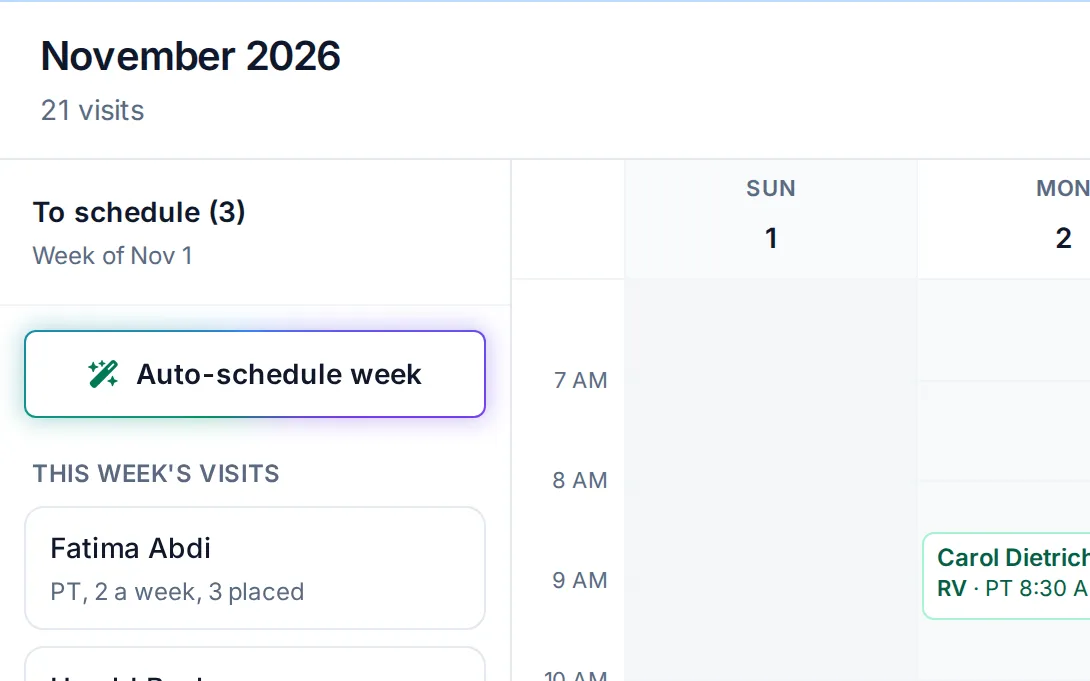
- Open the visit pool. On a wide screen it is on the left. In a narrower window, press To schedule.
- Press Auto-schedule week at the top of the visit pool. It says Scheduling the week while it works.
- A message says what it did, such as 6 visits placed., with Undo.
The button shows only while the visit pool has a visit to place and the week has not passed. A phone has no visit pool, so Auto-schedule week is on a computer or tablet only.
What it changes and what it leaves alone
What it does
- Places the visits in This week's visits and First visits, from today to the end of the week.
- Uses only your working days, inside your working hours, from Settings, then Home and hours.
- Spreads a patient's visits out, not back to back, with a day or two between where it can.
- Puts one visit per patient per day, and skips days that already have a visit of your discipline for that patient.
- Avoids times the patient can't be seen.
- Places a first visit on the first open day from the start of care.
- Then puts each day from today on in driving order, as Optimize route does. This can change the times of visits already on your schedule.
What it leaves alone
- Days that have passed, and visits earlier today.
- Visits that are completed, missed, checked in, or locked. To keep a visit's time, open it and lock it first. On a computer, right-click it and choose Lock this time.
- Cards under Waiting, PRN visits, and patients on hold.
- A day it can't fit in your hours. That day stays as it was.
Types chosen on cards go with it
If you right-clicked a card and chose a visit type, Auto-schedule week uses it. Other visits are placed with no type.
Undo the week
Press Undo in the message. Logicly deletes the visits it placed and puts moved visits back at their old times, all at once. The message says The week is back as it was.
If any of those visits changed since, such as moved, checked in or marked, nothing is undone and the message says The week changed since, so it could not be undone. Move or delete those visits yourself.
If it isn't working
- I don't see Auto-schedule weekChoose Day or Week, not Month, and open the visit pool. It hides when everything is placed, when the week has passed, and on a phone.
- 1 visit placed. 2 did not fit.No working day left this week had a time that fit inside your hours and clear of the patient's blocked times. Place those visits by hand, on another day, or after your hours.
- No visits fit this week.Nothing fit. Check your working days and hours in Settings, then Home and hours, and the patients' blocked times.
- 2 first visits need an address.A first visit with no address isn't placed. The card says Add an address to auto-schedule. Add the address on the patient's record and run it again.
- The week could not be scheduled. Try again.Nothing was placed. Check your signal and press it again.
- Logicly is read only right now.Your free month or plan has ended. Pay $24 a month to make changes again.
Still stuck? Email support@logicly.ai.
Related articles
How to place visits from the visit poolDrag or press a card in the visit pool to put a visit on your schedule, and drag it back to take it off.Put a day's visits in driving order with Optimize routeOptimize route reorders a day's visits for less driving, and shows you the changes before anything moves.Mark times a patient can't be seenMark dialysis days and other times on the patient's record, and see them while you place visits.Why a patient isn't in the visit poolWhat puts a patient in the visit pool, and why one might be missing or stuck under Waiting.