Find Optimize route
- On a computerOpen Schedule and choose Day. Optimize route is in the bar above the day, beside a line such as 4 stops, 58 min driving.
- On a phoneOpen Schedule and choose Day. Optimize route is the route icon at the end of the row with Day and Month. The day arrows and Today sit right under it, above your visits.
Optimize route is on Day only, not Week or Month.
Optimize a day
- Go to the day you want and press Optimize route.
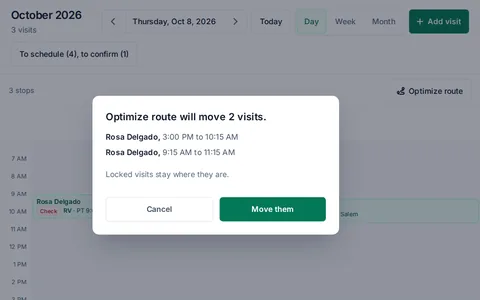
- Logicly shows what will move, such as Optimize route will move 3 visits., with each patient's old and new start time.
- Press Move them, or Cancel to leave the day as it is.
- A message says Route optimized. 3 visits moved., with Undo.
If the day is already in its best order, Logicly says This day is already in the best order. and nothing moves.
What it moves
- Only your own scheduled visits that are not checked in and not locked.
- Completed, checked-in and locked visits keep their times, and the others are fitted around them. Locked visits stay where they are.
- Visits keep their length. The day starts no earlier than your working day starts and no earlier than the first visit it can move started, and ends by the end of your working day.
- A visit that would land in a time the patient can't be seen keeps its time.
What it needs
- At least two visits that can move. Otherwise the button is off and says Nothing to optimize.
- Your home address in Settings, then Home and hours. Your routes and miles start and end here.
- An address for each patient. When an address is missing, Logicly guesses 30 minutes of driving to and from that visit.
- Your working hours in Settings, then Home and hours.
- Signal, since it works out the drives online.
If the order looks wrong or nothing moves
- The new order looks wrongPress Undo in the message. Then lock the visits that must stay at their time and run it again. On a computer, right-click a visit and choose Lock this time. You can also drag visits yourself.
- A visit is far off or the drive looks oddCheck the patient's address on their record, and your home address in Settings, then Home and hours.
- These visits and the driving between them don't fit between 8:00 AM and 5:00 PM. Nothing was moved.No order fits in your working hours. Move a visit to another day, or change your hours in Settings, then Home and hours.
- Your work day is over, so there is no time left to fit these visits today. Nothing was moved.On today, it is past the end of your working day. Optimize a later day, or move the visits by hand.
- Blocked times keep these visits where they are. Nothing was moved.A patient can't be seen at the times that would help. Check the patient's Availability tab.
- The route could not be loaded. Reload the page to try again.Reload the page, check your signal, and press Optimize route again.
- One of these visits has changed since, so Undo is off.A visit was moved, checked in or marked after the optimize. Move visits back by hand.
- The window closed with nothing movedThe day changed after you pressed the button. Press Optimize route again.
Still stuck? Email support@logicly.ai.
Related articles
Auto-schedule a week, and undo itOne press places the week's visits, spread out, in driving order. Undo puts the week back.How to place visits from the visit poolDrag or press a card in the visit pool to put a visit on your schedule, and drag it back to take it off.Mark times a patient can't be seenMark dialysis days and other times on the patient's record, and see them while you place visits.