On an iPhone
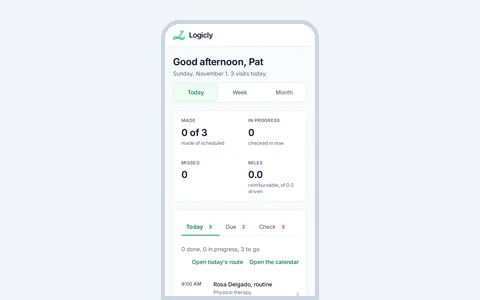
Logicly does not come from the App Store. You add it from Safari, and it gets its own icon. Tap the icon between visits and it opens full screen, like an app.
- Open Safari and go to app.logicly.ai.
- Tap Share. It is the square with an arrow pointing up.
- Scroll down the list and tap Add to Home Screen.
- Check that the name says Logicly, then tap Add.
- Close Safari and tap the Logicly icon on your home screen.
- Sign in.
Use app.logicly.ai
Add the icon from app.logicly.ai, where you sign in. An icon added from homehealthscheduling.com opens the website, not your schedule.
On an Android phone
- Open Chrome and go to app.logicly.ai.
- Tap the menu, the three dots at the top right.
- Tap Add to Home screen. Some phones say Install app instead.
- Follow Chrome's steps to add it.
- Tap the Logicly icon on your home screen and sign in.
If Chrome offers to install Logicly by itself, you can tap Install there. It does the same thing.
Turn your phone sideways
Every screen in Logicly has a layout for a phone held on its side. Turn the phone, and the menu moves to a strip down the left side. Your schedule, the map and the patient list get the rest of the screen. More opens as a panel beside the strip.
If nothing turns when you turn the phone, your phone's rotation lock is on. On an iPhone, turn off Portrait Orientation Lock in Control Center. On Android, turn on Auto-rotate in the quick settings.
If it isn't working
- There is no Add to Home Screen on an iPhoneMake sure you are in Safari. After you tap Share, scroll down the list. Add to Home Screen is under the row of apps.
- The icon opens the website, not your scheduleThe icon was added from another address. Delete it and add it again from app.logicly.ai.
- Logicly asks you to sign in from the iconSign in once from the icon. If you set up Face ID in Safari before and the icon asks for your password, set up Face ID again from the icon: Settings, then Security.
Still stuck? Write to support@logicly.ai and say which phone you have.
Related articles
Sign in with Face ID or a fingerprint, and why Logicly locksSign in with a glance, and open Logicly again after it locks.Use Logicly with no signalSee your schedule and patients in a dead zone, as of the last refresh.My sign-in code didn't arrive, or I forgot my passwordFind your code, ask for a new one, or choose a new password.