Choose a color set
- Open Settings, then Appearance.
- Under Visit colors, find Use a color set.
- Press Pastel, Bright, Earth, Jewel or Dusty. Every visit type takes a color from that set.
- To go back to Logicly's own colors, press App colors.
The colors show on Schedule, the visit pool, Visit history and the Frequency tab. Each change saves at once, with no Save button, and your other devices follow.
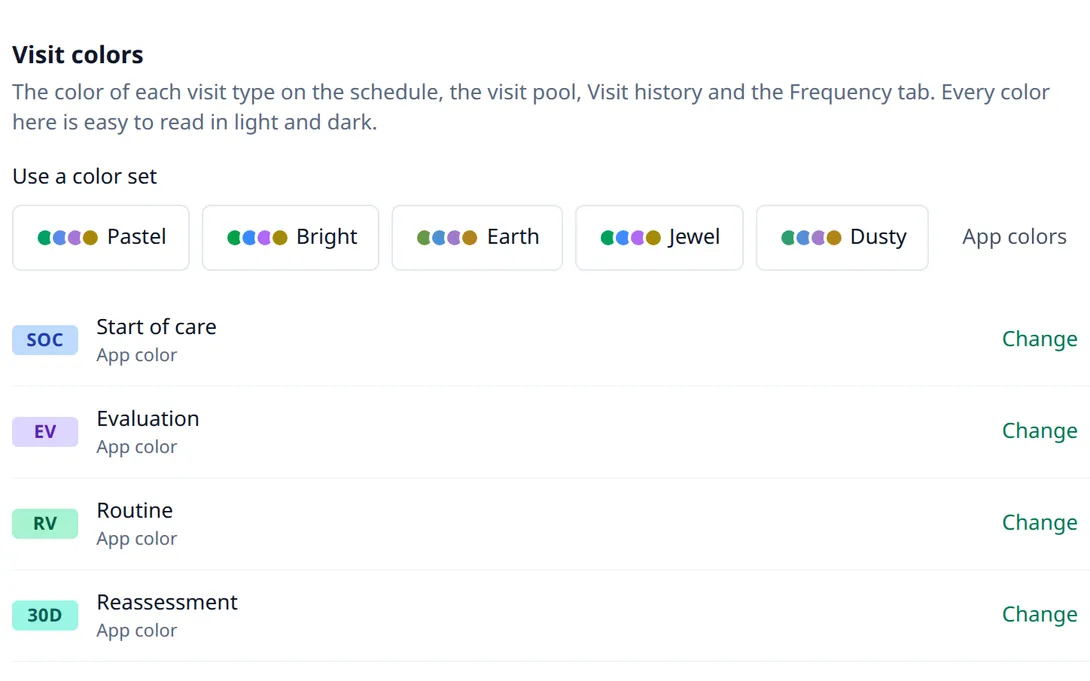
Change one visit type's color
- In Visit colors, find the visit type, such as Start of care or Routine.
- Press Change beside it.
- Pick a color from any set, or App color for Logicly's own.
- Two visit types can't share a color. A color another type has is shown but can't be picked.
- Not chosen is the gray for a visit with no type yet. Pick App gray, Stone, Zinc, Taupe or Pewter.
- Nurses see PRN visit, Extended visit and IV visit. Therapists see Reassessment.
Choose textures for scheduled and missed visits
Visit textures set how Visit history on a patient's record marks a visit that is scheduled or missed. A visit that was made stays plain.
- In Settings, then Appearance, find Visit textures.
- Under Scheduled, pick a texture. Stripes is chosen to start with.
- Under Missed, pick another. Cross-hatch is chosen to start with.
The choices are Stripes, Wide stripes, Vertical lines, Horizontal lines, Dots, Large dots, Cross-hatch and Grid. Scheduled and Missed can't use the same one.
If it isn't working
- Your visit colors were not saved. Your other devices keep the colors they had.Press Try again. Check your signal first.
- I can't pick a colorAnother visit type has it. Change that type first, or pick another color.
- A visit is grayIt has no visit type yet. Open it and press Choose visit type.
- The textures don't show on ScheduleTextures are for Visit history on the patient's record only.
Still stuck? Email support@logicly.ai.