Where to find to-dos
To-dos is in the menu, under Map. On a phone it is in the bar at the bottom of the screen. It lists all your to-dos, for yourself and for your patients.
Each patient's record has a To-dos tab too. It lists only that patient's to-dos, and a to-do you add there belongs to that patient.
The list is grouped into Late, Today, Upcoming and No date. Completed to-dos fold away at the end. Use the tags All, Personal, Scheduling and Patient at the top to filter.
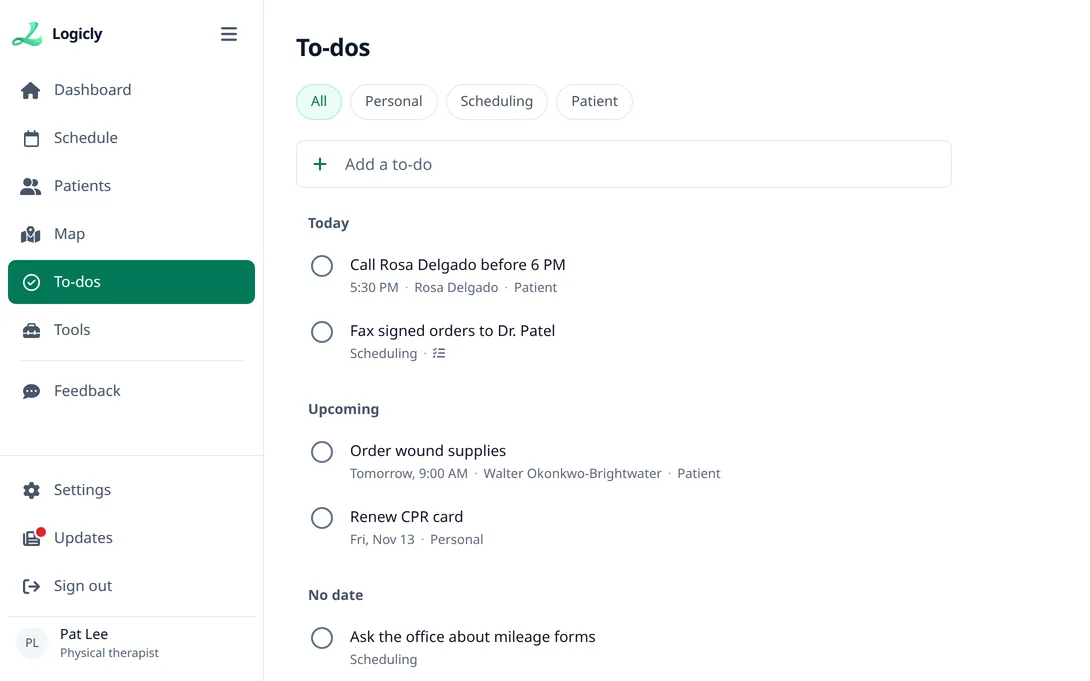
Add a to-do
- Type in Add a to-do and press Enter, or press Add.
- Tap the to-do to open it.
- Add any of these: a patient, details, a date with Today or Tomorrow, a time, tags, steps with Add step, and pictures with Add picture.
- Close it. Each change saves as you make it.
On a phone, Add picture offers Take a photo or Choose from photos.
- A title holds up to 200 characters, and details up to 4,000.
- A to-do holds up to 50 steps.
- A time needs a date first.
- Pictures can be JPEG, PNG, WebP or HEIC photos, up to 25 MB each.
Check it off, move it or delete it
Tap the circle beside a to-do to mark it done. Each step has its own circle too. Press Undo in the message that appears if you tapped by mistake.
For more choices, right-click a to-do on a computer, or rest your finger on it on a phone. The menu has Mark done, Edit, Move to and Delete. Move to offers Today, Tomorrow, Next week, No date and Pick a date.
To delete a to-do from inside it, press Delete to-do.
If it isn't working
- No add line on a patient's To-dos tabThe patient is discharged or archived. You can still check off, open and change their to-dos, but not add new ones.
- The patient isn't in the Add patient listA to-do can only go on a patient who is not discharged or archived.
- Enter a title, up to 200 characters.A to-do needs a title. Type one at the top.
- Only photos (JPEG, PNG, WebP, HEIC) can be added.PDFs and other files go on the patient's Files tab instead.
- A file can be up to 25 MB.Take the picture again at a smaller size, or choose a smaller photo.
- This to-do changed elsewhere. The latest is shown.You changed it on another device or tab. Check what is shown, and make your change again.
- The change was not saved. Try again.Check your signal and try again.
Still stuck? Email support@logicly.ai.