Add an agency
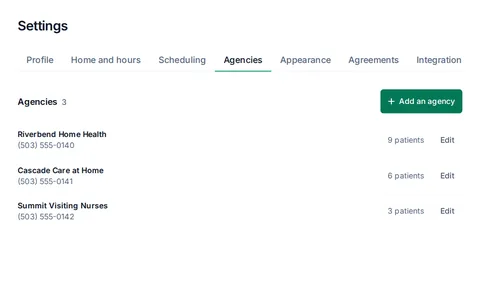
- Open Settings, then Agencies.
- Press Add an agency.
- Type the Name. Office phone and Note are optional. Use the note for which system or device goes with this agency.
- Under Pay per visit, type what the agency pays for each visit type. Leave blank any type without a set amount.
- Check the Units. They start filled in with common values. Change any to match what this agency counts.
- Press Save agency.
To change an agency later, press Edit beside it in the list.
Units and pay
Each new agency starts with these units. Change any of them, or leave a visit type blank if the agency doesn't count it.
- Start of care2 units
- Evaluation1.5 units
- Routine1 unit
- Reassessment1 unit
- Recertification2 units
- Resumption of care2 units
- Supervisory1 unit
- Agency discharge2 units
- Discipline discharge1 unit
- PRN, Extended and IV visits1, 2 and 1.5 units. These show for nurses only.
Units take a number from 0 to 99.99, with up to two decimal places. Pay takes an amount from $0 to $9,999.99.
Under the list of agencies, turn on Show pay on the dashboard to see an estimate of your pay for visits completed, from each agency's pay per visit.
Set a patient's agency
- Open the patient, then More, then Edit patient.
- Under Agency, choose the agency. Choose No agency to clear it.
- Press Save changes.
You can also choose the agency when you add a patient. If the agency isn't in the list yet, press Add an agency, save it, and press Save and return to patient.
With two or more agencies, the agency's name shows on the patient's record, in an Agency column on Patients, on the patient's card on Map, and in a visit's window on Schedule.
If it isn't working
- The agency name doesn't show on my patientsLogicly shows agency names only once you have two or more agencies. With one, every patient is that agency's.
- Enter a 10-digit US phone number, or leave it empty.Type the office phone with its area code, or clear the field.
- Enter a number from 0 to 99.99, with up to two decimal places.A unit field takes numbers only, such as 1.5.
- Enter an amount from $0 to $9,999.99.Type the amount without letters, such as 85 or 92.50.
- No pay on the DashboardTurn on Show pay on the dashboard under the list of agencies, and give at least one agency a pay per visit.
- Remove agencyRemoving an agency takes it off every patient who has it, archived patients too. They will have no agency. You cannot undo this.
Still stuck? Email support@logicly.ai.
Related articles
Add a patientOnly the first and last name are needed now. The rest can wait.Find your way around a patient recordThe header, the tabs, Key dates, Visit history and precautions, and what each one tells you.I can't find a patient on my listSearch by name, check what Show is set to, and look under Archived.