What changed
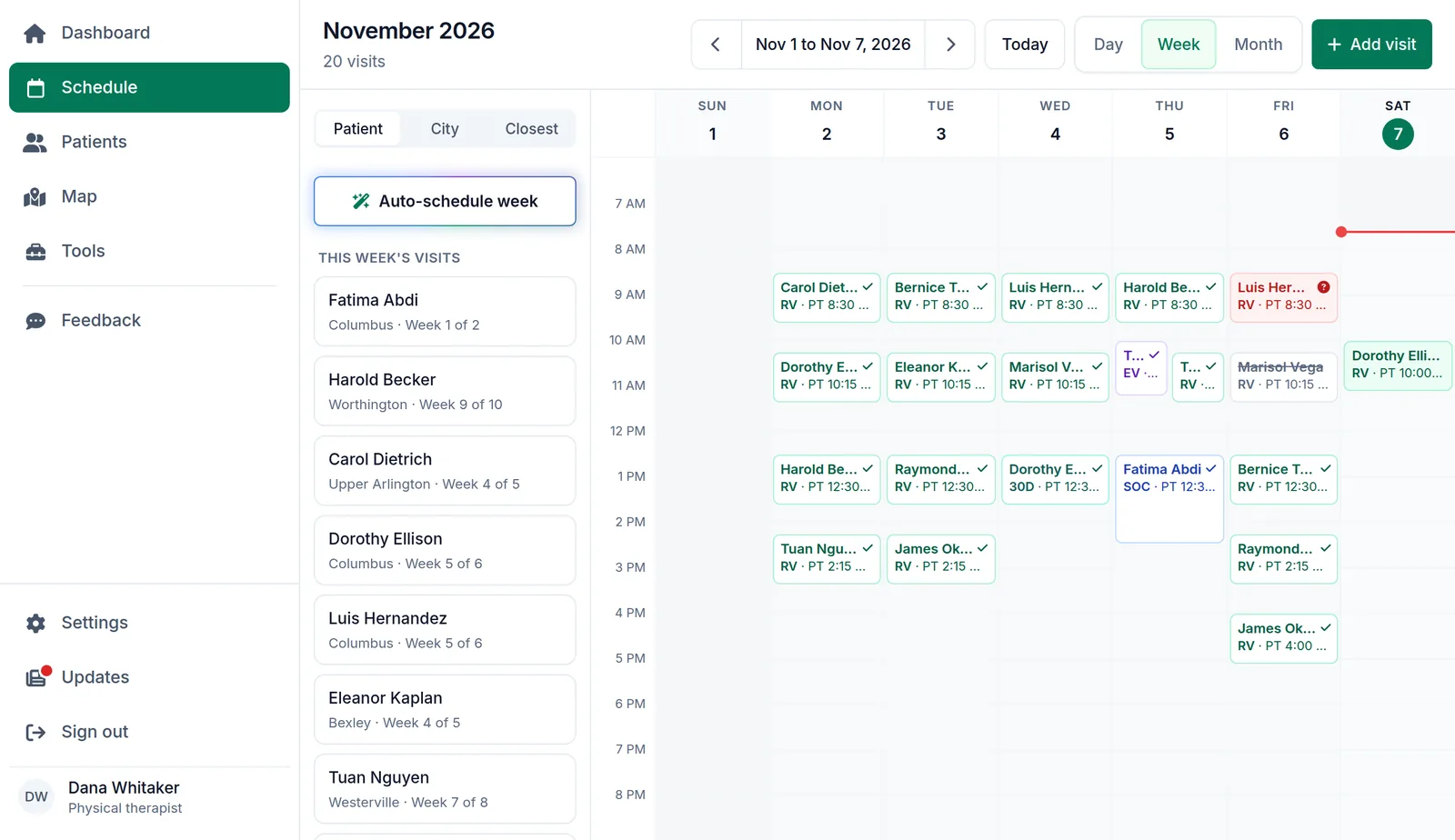
The visit pool on the Schedule page has an Auto-schedule week button. Press it before the week starts, and Logicly places the week’s visits for you.
- Each patient’s visits are spread out: never on back-to-back days, with a day or two between.
- Each visit gets a time that fits the day, and each day is put in driving order.
- A start of care keeps the day it is on, and the visits that can go on any day are placed around it.
- Visits already done this morning and your days off stay where they are.
Undo puts the week back.
If the week is not what you wanted, Undo on the message puts every visit back as it was, all at once.
What this means for you
On October 31 we took the weekly auto-schedule run out, so that you choose each visit yourself. Auto-schedule week is the new way back: it only runs when you press it, it places only the visits still waiting in the pool, and you can move anything it placed.
You can still place visits one at a time: drag a card from the visit pool, or tap the days on the patient’s Frequency tab. Sort the pool by patient, city or the closest to you.
How to use it
- Open Schedule in Logicly and go to the week.
- In the visit pool, press Auto-schedule week.
- Check the week on the calendar, and move any visit you want somewhere else.
- Or press Undo on the message to put the week back.