What changed
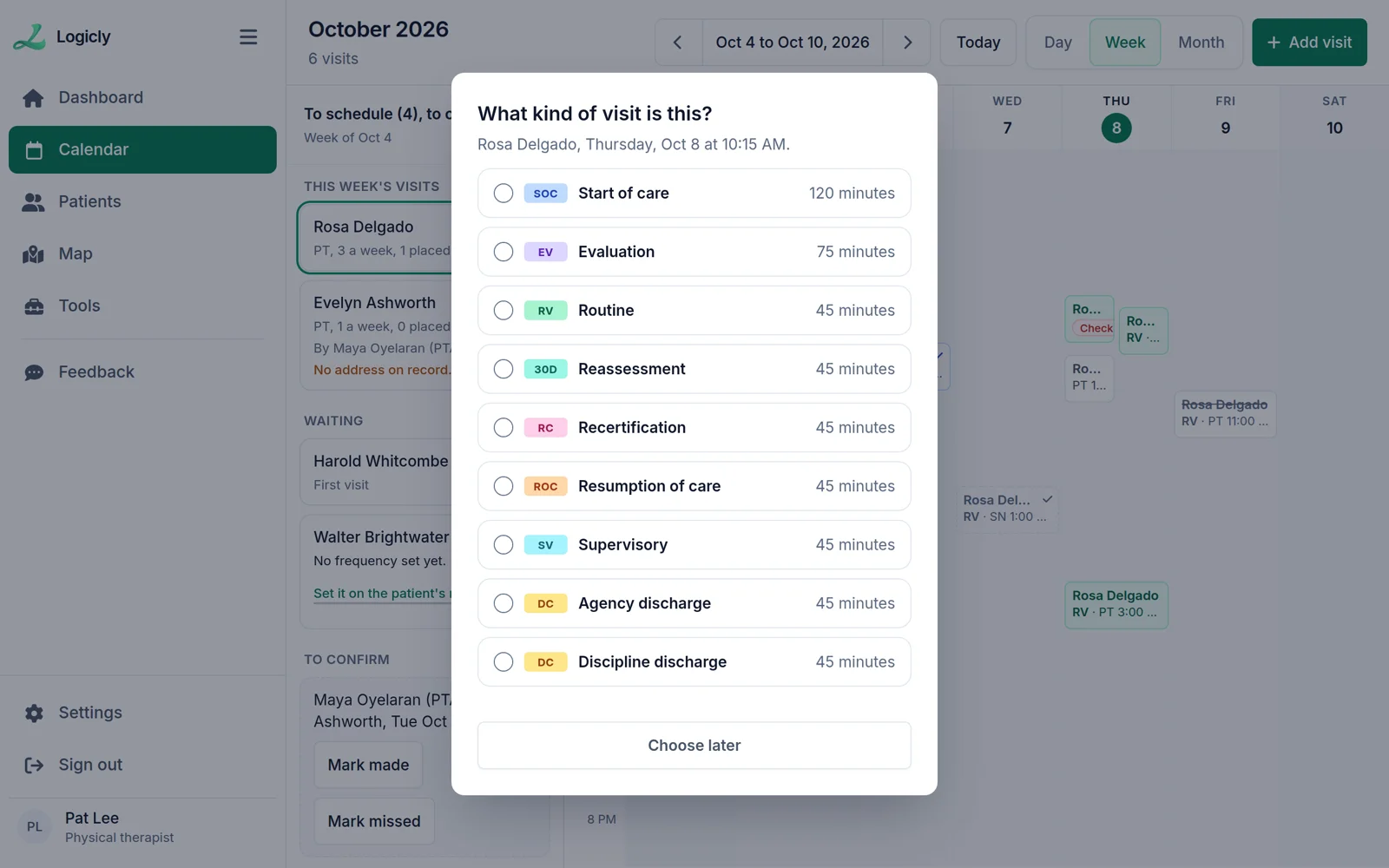
Logicly used to work out each visit’s type from Medicare rules, and it could refuse a visit that did not fit them. Now you choose the type. The rules still show as alerts on the patient’s record, but they never stop you from saving a visit.
- Visit typeYou choose it from nine types, or leave it for later
- To scheduleLists only the visits the frequency says the week still needs
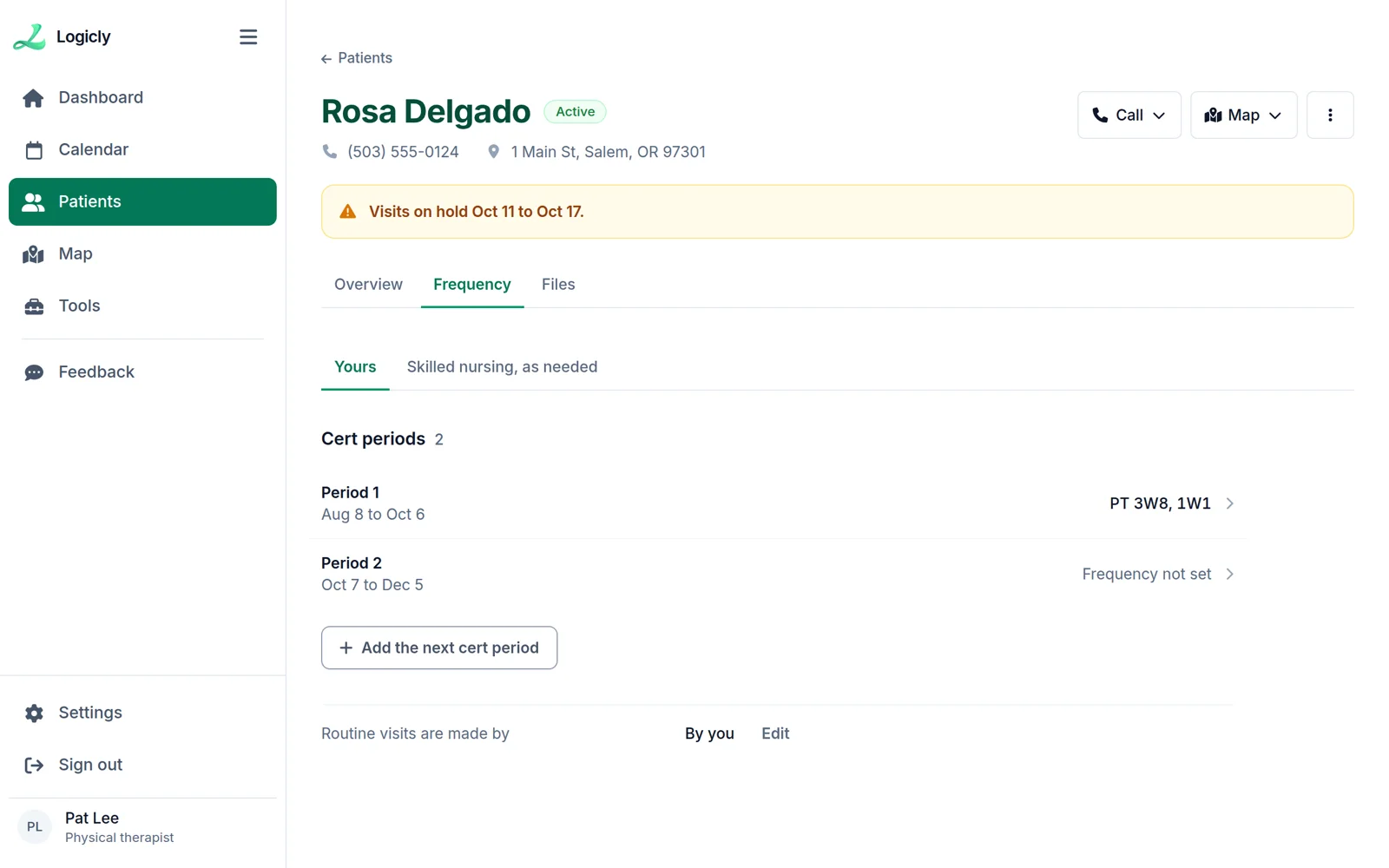
- Frequency tabOpens on the patient’s cert periods
- Auto-schedule weekGone. Optimize route orders one day at a time
Your patients and visits stay as they are.
Nothing was removed. The visits you already had keep their type, and you can change any visit’s type from the calendar.
What this means for you
When you place a visit
Drag a card from To schedule onto the calendar and Logicly asks, “What kind of visit is this?” Pick one of the nine types, or press Choose later and come back to it. To skip the drag, press the card and choose the type and the day in a small form. Logicly finds the time that fits the day’s route, and you can move the visit after.
- A visit needs a type before you complete it.
- Each type has its own length, which you can change in Settings.
- You can change a visit’s type from the calendar at any time, even after it is made. What you recorded when you completed it stays.
On the Frequency tab
The tab opens on the patient’s cert periods. A period is always 60 days, and the frequency sits inside it. When you are ready for the next period, press Add the next cert period. If the patient has no start of care yet, Create cert period walks you through it.
When you plan a day
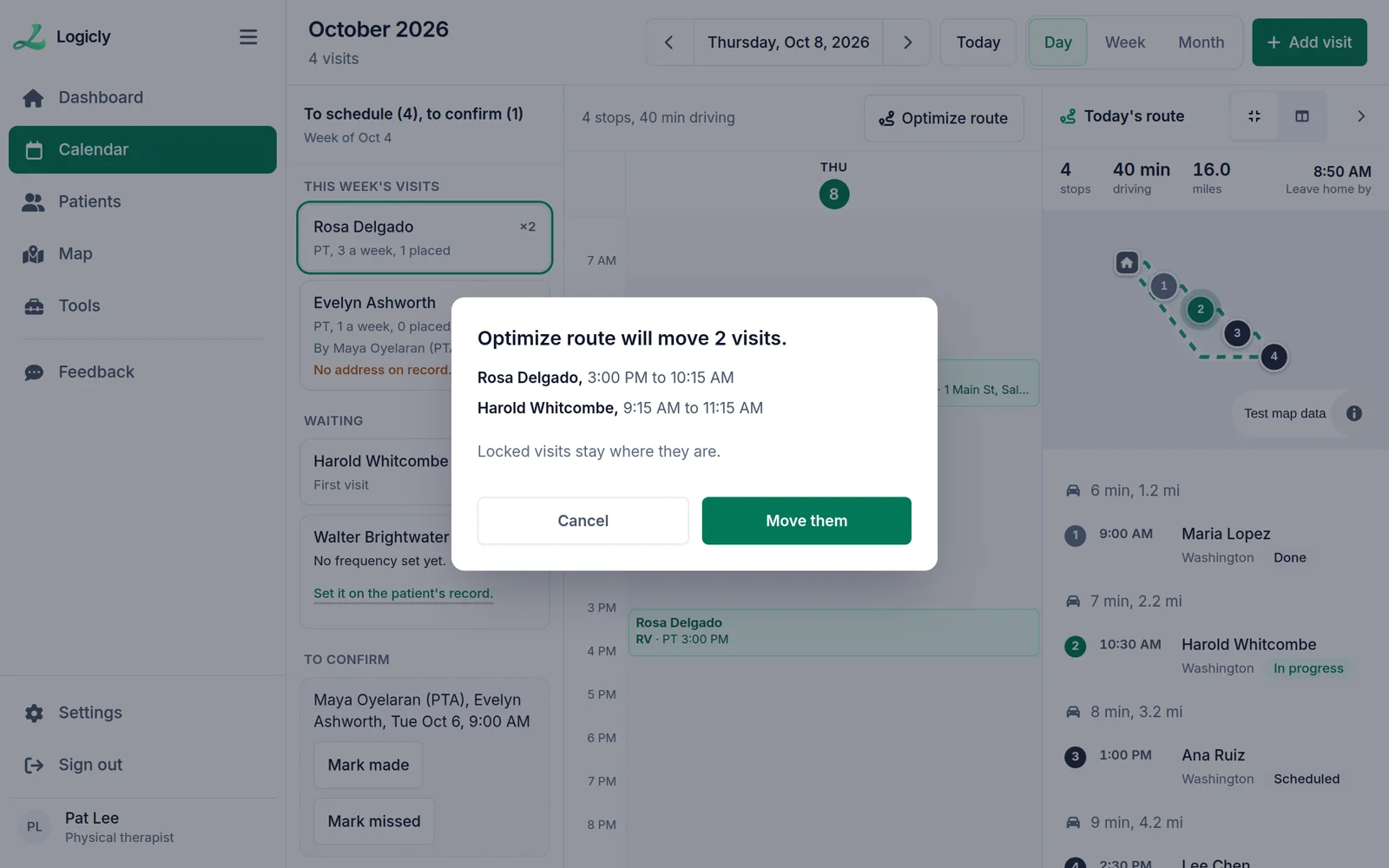
In the Day view, Optimize route puts that day’s visits in the best driving order. Visits never move to another day.
- Before anything moves, a notice lists every visit that would change. Press Move them or Cancel.
- After the visits move, Undo on the message puts the times back.
- Lock this time keeps a visit where it is, and Optimize route fits the others around it.
- If the visits and the driving do not fit in your work day, nothing moves and Logicly tells you why.
How to place a visit
- Open Calendar in Logicly.
- Drag a patient’s card from To schedule onto a day, or press the card to choose the type and the day.
- Choose the visit type, or press Choose later.
- In the Day view, press Optimize route, check the list, and press Move them.